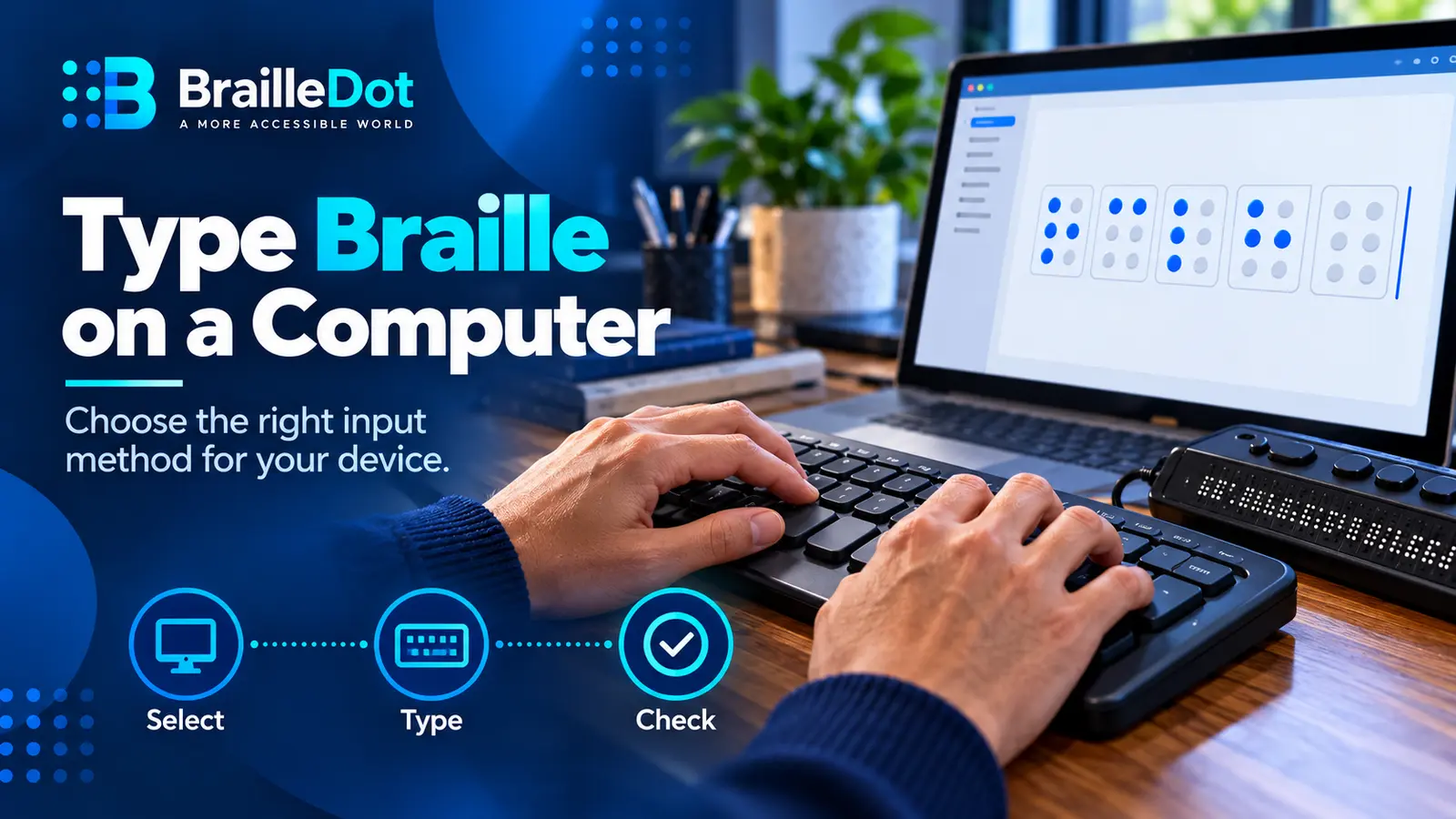
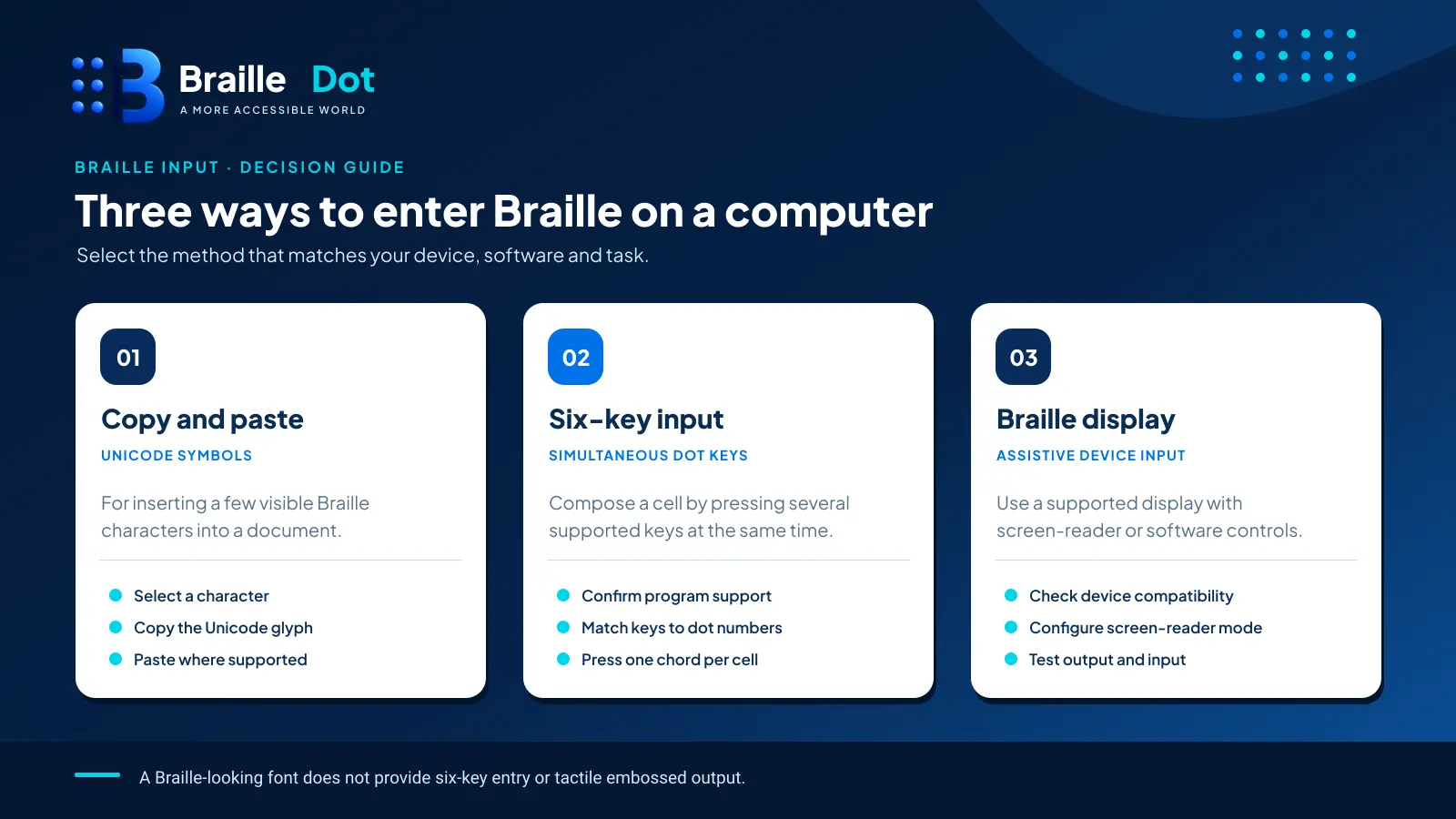
There are three different tasks people mean by “type Braille on a computer”: enter dot combinations with six keys, insert already encoded Unicode Braille characters, or type through a connected refreshable Braille display. The right method depends on which one you need.
If you want to try a six-key layout without special hardware, start with the browser method below. If you already use a Braille display, use its input keys with your screen reader. If you only need one symbol in a document, copying a Unicode character may be simpler than learning a chorded keyboard.
Choose an input method before touching the keyboard
| Your goal | Most direct method | Needs separate Braille hardware? |
|---|---|---|
| Practice forming dots 1–6 on an ordinary computer keyboard | Browser-based Perkins-style six-key input | No |
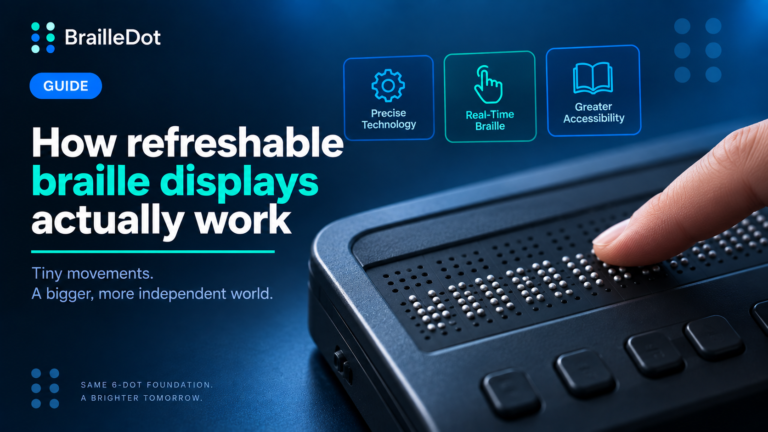
| Type actual Braille cells using a refreshable display | Braille keyboard on the display + screen reader | Yes |
| Type with macOS VoiceOver using the computer’s home row | VoiceOver Braille Keyboard Input | No external display required for this keyboard mode |
| Insert a few Braille glyphs into notes or messages | Copy and paste Unicode Braille | No |
| Produce a Braille-ready file for compatible equipment | Translate then export and proofread BRF | Hardware needed for tactile output |
These methods are not interchangeable. A document containing visible Unicode dots is still an on-screen text document until a suitable device produces raised cells.
A six-key layout you can try in your browser
Open the BrailleDot translator and switch its input layout to Perkins when you want to compose Braille cells rather than simply type ordinary English into the converter. The tool exposes the following six-key mapping:
| Left-hand key | Braille dot | Right-hand key | Braille dot |
|---|---|---|---|
| F | 1 | J | 4 |
| D | 2 | K | 5 |
| S | 3 | L | 6 |
The physical positions run top-to-bottom within each Braille column, but the keyboard keys follow the way hands rest on a QWERTY layout. Read the left column as F–D–S and the right as J–K–L. Press the keys associated with the raised dots of the cell you intend to enter.
Work through three cells
Try writing cat in uncontracted Braille. The result should be ⠉⠁⠞.
- c uses dots 1-4. With the mapping above, use F + J. The resulting cell is ⠉.
- a uses dot 1. Use F. The cell is ⠁.
- t uses dots 2-3-4-5. Use D + S + J + K. The cell is ⠞.
The browser tool shows a Current Cell and an Insert Staged Cell control. Check the visible dot pattern and insert the staged cell into the output when the interface requires it; do not assume typing a chord automatically commits it in every editor. Use the tool’s designated space control between words, not between letters of one word.
When finished, compare the result with the uncontracted word ⠉⠁⠞. For another test, create dog from dots 1-4-5, 1-3-5, and 1-2-4-5. That should yield ⠙⠕⠛.
If your laptop misses simultaneous presses, its keyboard may not register every combination reliably. Use the tool’s on-screen controls if available, slow down and confirm the staged cell, or use a dedicated Braille input device.
Windows: Narrator and a supported Braille display
Windows Narrator supports reading and typing through compatible Braille displays. This is not the same as Windows offering a universal six-key input mode on every standard QWERTY keyboard.
The typical setup path is:
- Connect a compatible Braille display using the connection method supported by your display and Narrator. Microsoft’s current Narrator guidance documents USB or serial connections for this feature; check the specific device and software before assuming Bluetooth support.
- Press Windows logo key + Ctrl + N to open Narrator settings.
- Find Use a braille display with Narrator. If Braille support has not been installed, use the Download and install Braille control and follow the restart prompts.
- Turn Braille on and choose the appropriate display and input/output table for your task. A Grade 1/uncontracted table behaves differently from a contracted table.
- If the display has a Braille keyboard, type on its dot keys and test a short word before entering a long passage.
Exact menus, display drivers and supported models can change with Windows releases. The important check is whether your specific display is recognized and whether the selected Braille table matches the text you want to enter.
If you do not have a supported Braille display, use the browser six-key method or copy Unicode symbols instead. Installing Narrator alone does not turn six ordinary keyboard letters into a universal Braille keyboard in every Windows app.
Mac: use VoiceOver Braille Keyboard Input
macOS has a separate Braille Keyboard Input feature within VoiceOver. It allows you to use home-row keys as Braille dot keys. With VoiceOver turned on:
- Activate Braille Keyboard Input using VO-Y. VO is your chosen VoiceOver modifier, commonly Control–Option or Caps Lock.
- On a U.S. English keyboard, Apple’s documented home-row layout uses A S D F and J K L ; for eight Braille dot keys. This is not the same six-key mapping used by BrailleDot’s browser editor.
- Type a familiar short word. Check the spoken or displayed result before continuing.
- Use VO-Y again to turn Braille Keyboard Input off when you want ordinary typing back.
The active input table affects how the cells are interpreted. You can also use a supported refreshable Braille display with VoiceOver and type on the display’s own Perkins-style keyboard when it has one.
If the shortcut or key set behaves differently, check your VoiceOver settings, keyboard layout and macOS version. Apple’s Braille Keyboard Input instructions document the current controls.
Just need to insert a Braille character into an app?
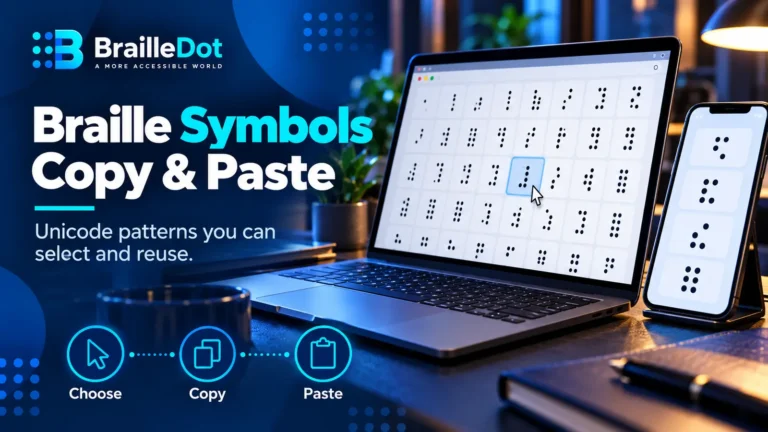
Copying a Unicode Braille character is usually the quickest route. For example, the uncontracted letters of cat are ⠉⠁⠞. Copy that exact three-cell sequence and paste it into a text field that supports Unicode.
The Braille symbols copy-and-paste reference provides the A–Z set, common indicators and all 64 six-dot Unicode patterns. It also explains why the empty Braille pattern U+2800 is not the same Unicode character as an ordinary space.
Pasting does not validate the Braille code or create tactile dots. You still need to verify any capital indicators, numeric indicators, word spaces and contractions for the intended Braille standard. The text editor may display Braille with a fallback font, and some screen readers may announce patterns or code points rather than treat them as meaningful English.
Common problems while typing
| Symptom | Check this first |
|---|---|
| You expected ⠉ but got ⠁ | Dot 4 did not register; repeat F + J or use on-screen dot selection |
| Chords are being typed as normal letters in a web page | Confirm the editor’s Perkins mode and keyboard focus are active |
| Braille word contains gaps between every letter | Remove spaces between cells; keep spaces only between print words |
| Narrator does not detect a display | Review model support, connection and Braille feature installation |
| Mac home-row keys do something unexpected | Confirm VoiceOver and Braille Keyboard Input are active; check input table |
| Grade 2 output differs from your memorized alphabet | Selected contractions or context rules may replace letter-by-letter spellings |
| Your printout has flat dots | Ordinary ink does not emboss tactile Braille |
A useful final test: Type the word cat by pressing six-key combinations, copy ⠉⠁⠞ from the symbols page, and enter cat into a Grade 1 translator. The three methods should represent the same uncontracted letters when configured correctly, even though their input workflows differ.
For structured keyboard practice beyond these initial examples, continue through the free Learn Braille course and its dedicated six-key typing lesson as that lesson becomes available.
Written by Marcus Wren.